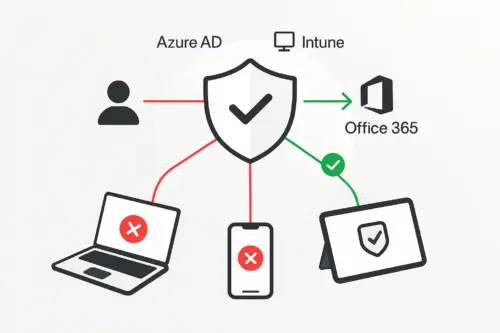
Step by step: Configuring Conditional Access in Azure AD and Compliance Policies in Intune
Hi! Today we’re tackling a topic that keeps many admins up at night, while simultaneously being one of Microsoft’s most powerful tools for protecting corporate data – Conditional Access in Azure AD, paired with Intune. I’ll show you step by step how to force users (I know, I know, we’re making things difficult for them again 😄) to access your treasures in Office 365 only from devices that meet your corporate security standards. No more logging in from random, unsecured devices! We’ll create a little Fort Knox for your data, but without the need to build a moat and hire dragons.
What is this Conditional Access thing and why is it worth it?
Imagine a bouncer at the entrance to an exclusive club (your corporate data). Conditional Access (CA) is exactly that kind of intelligent bouncer. Before letting someone in (granting access), it checks not only if the person has a ticket (correct login credentials), but also if they meet additional conditions – for example, if they came dressed appropriately (using a trusted device), if they’re sober (the device is secure, compliant with policies), or even checks where they came from (network location).
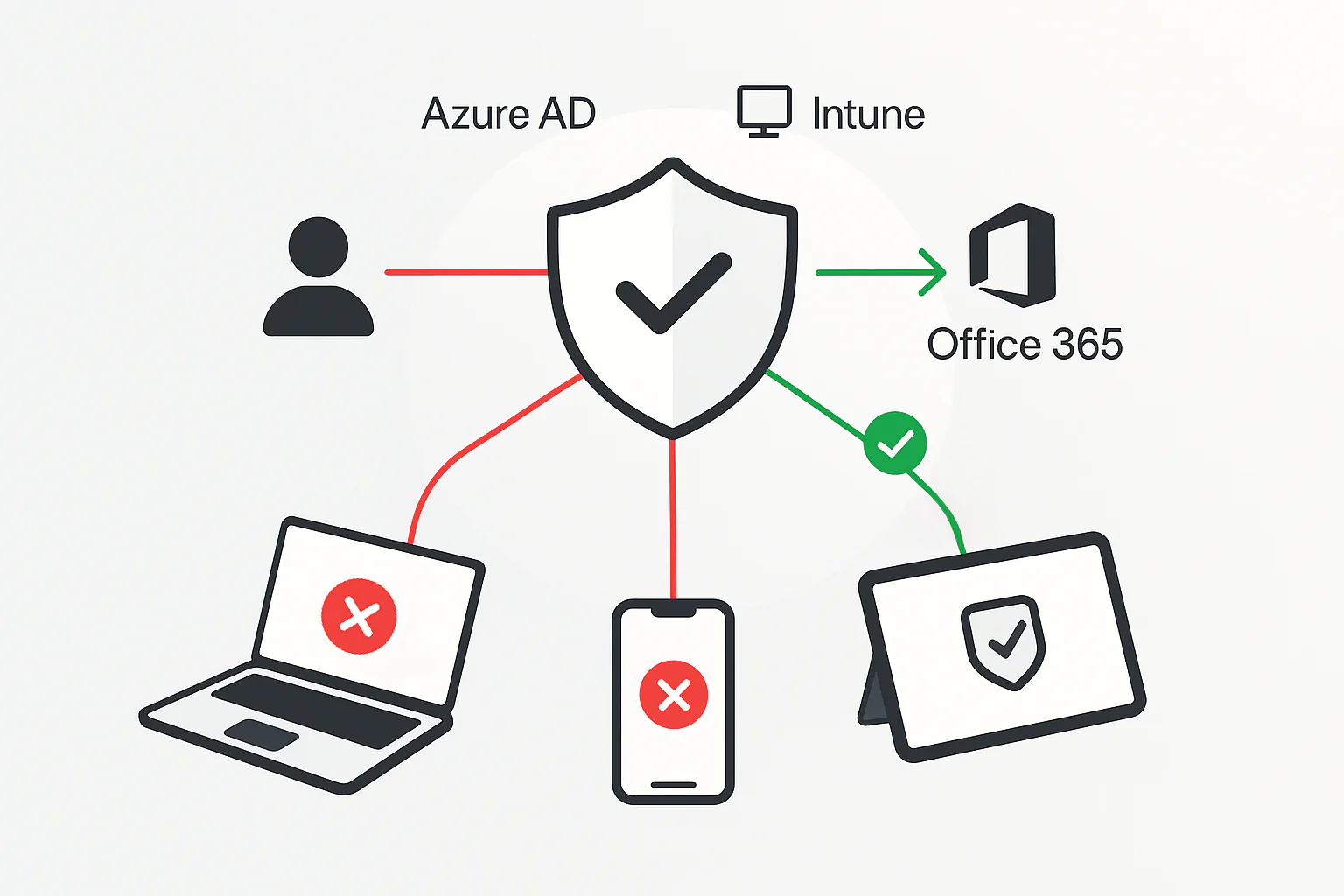
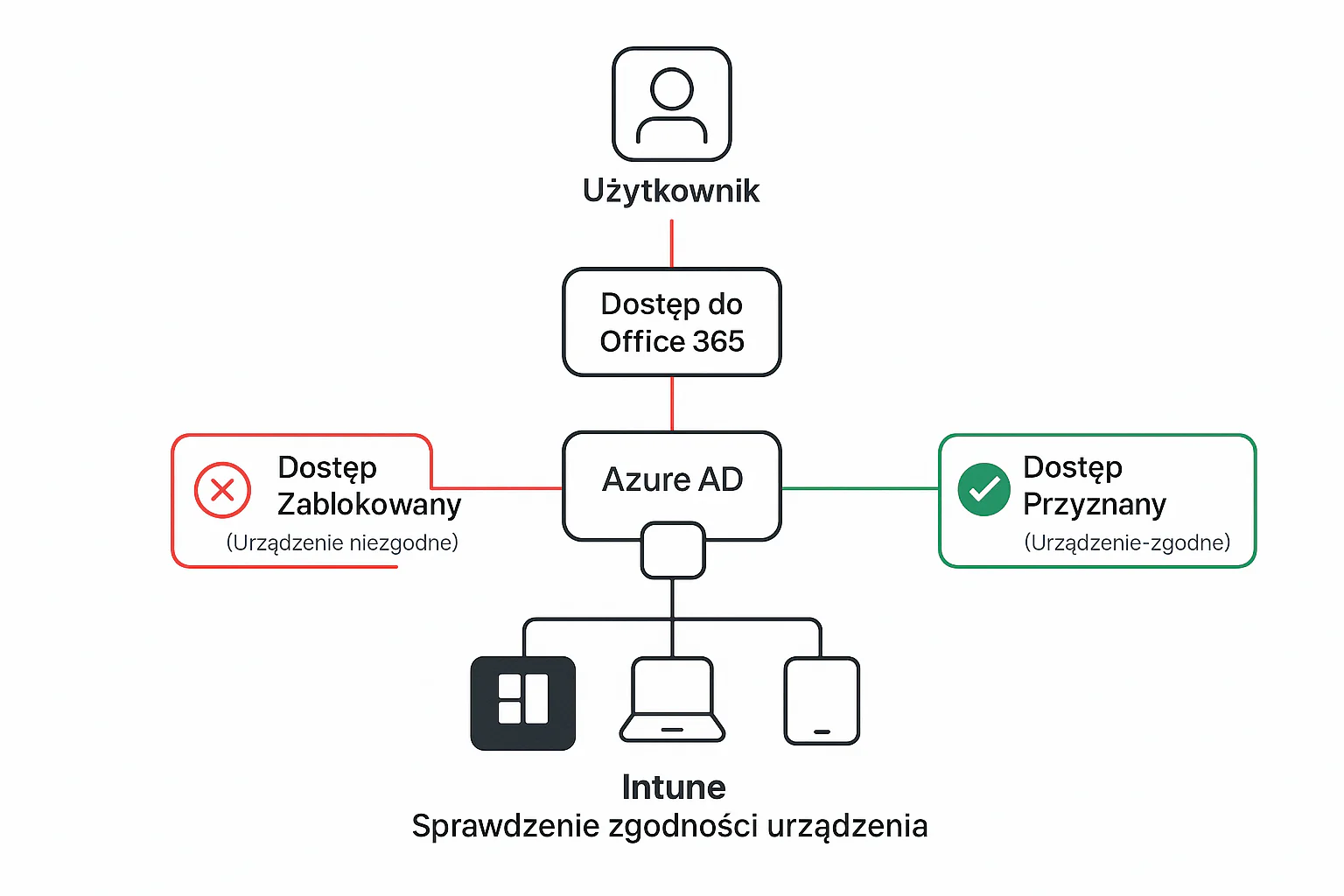
In our case, we’ll combine the forces of Azure AD (which manages identity and login) with Intune (which knows everything about the health status of your devices – whether they’re encrypted, have a PIN, or aren’t „rooted”). Thanks to this, we can create a rule: „Dear user, you want to access Outlook, Teams, or SharePoint (Office 365)? Sure, no problem, but only if you’re connecting from a device that Intune has marked as 'compliant'”. Simple and brilliant, right?
Before we start – what do you need?
Before we become digital bouncers, let’s make sure we have the right tools:
Azure AD Premium P1 or P2 licenses: Conditional Access is a premium feature. Without it, you can’t proceed.
Microsoft Intune licenses: needed to manage devices and define what „compliant device” means. Usually included in Microsoft 365 Business Premium, E3, E5 packages, etc.
Devices registered/managed in Intune: because how is Intune supposed to know if a device is compliant if it can’t see it? 😊 This applies to Windows, macOS, iOS, and Android.
User/device groups in Azure AD: we’ll be assigning policies to specific groups, so it’s good to have them prepared.
Got everything? Let’s go!
Step 1: Setting the bar – Compliance Policy in Intune
First, we need to teach Intune how to distinguish a „good” (compliant) device from a „bad” one. We do this using Compliance Policies.
Log in to the Microsoft Intune admin center (endpoint.microsoft.com). The good old meeting place for every M365 admin.
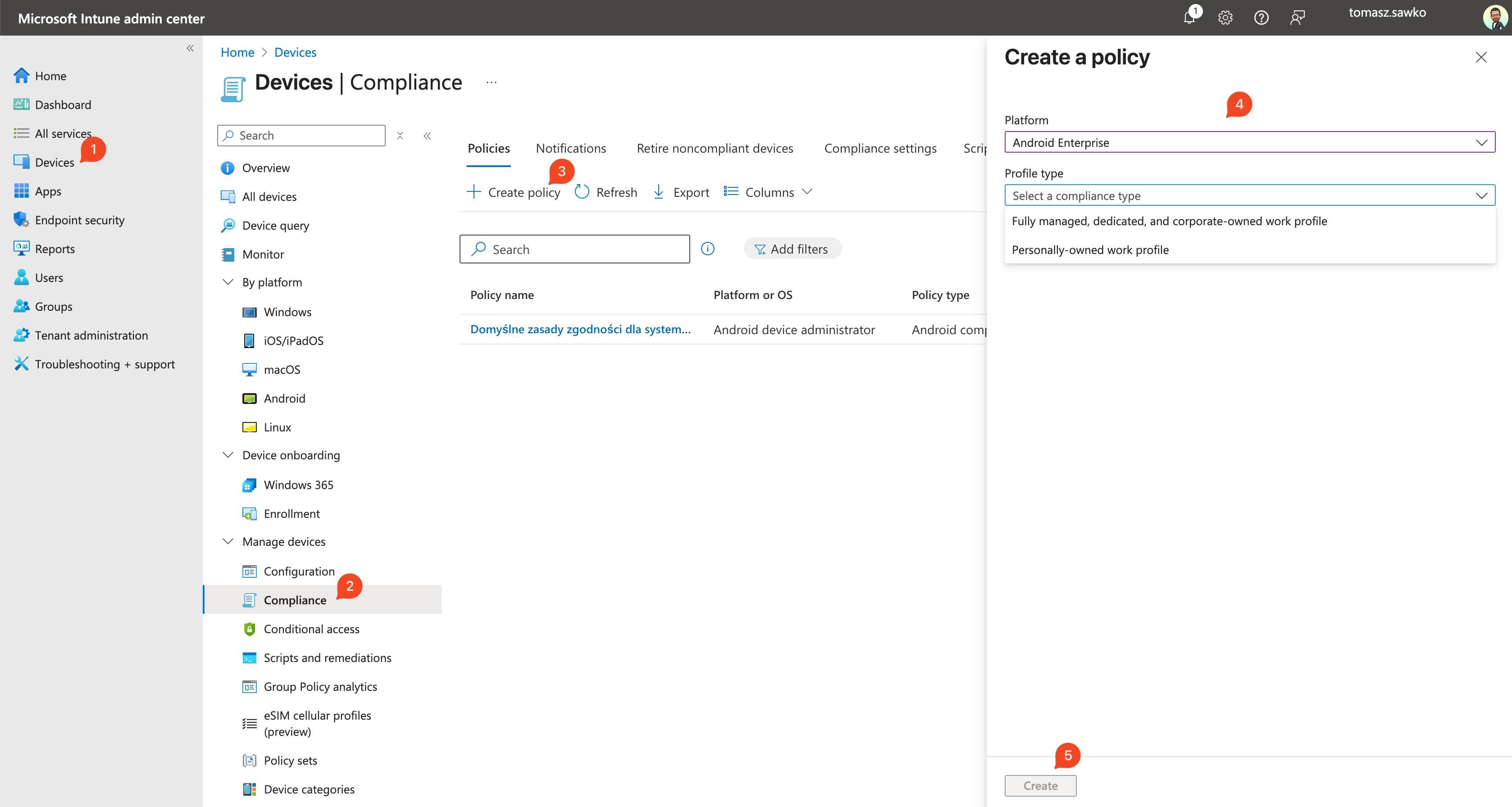
In the left menu, select Devices -> Compliance policies.
Click Create policy.
Select the platform for which we’re creating the policy (e.g., Android Enterprise, iOS/iPadOS, Windows 10 and later). Let’s assume we’re starting with Android for work profile (Work Profile).
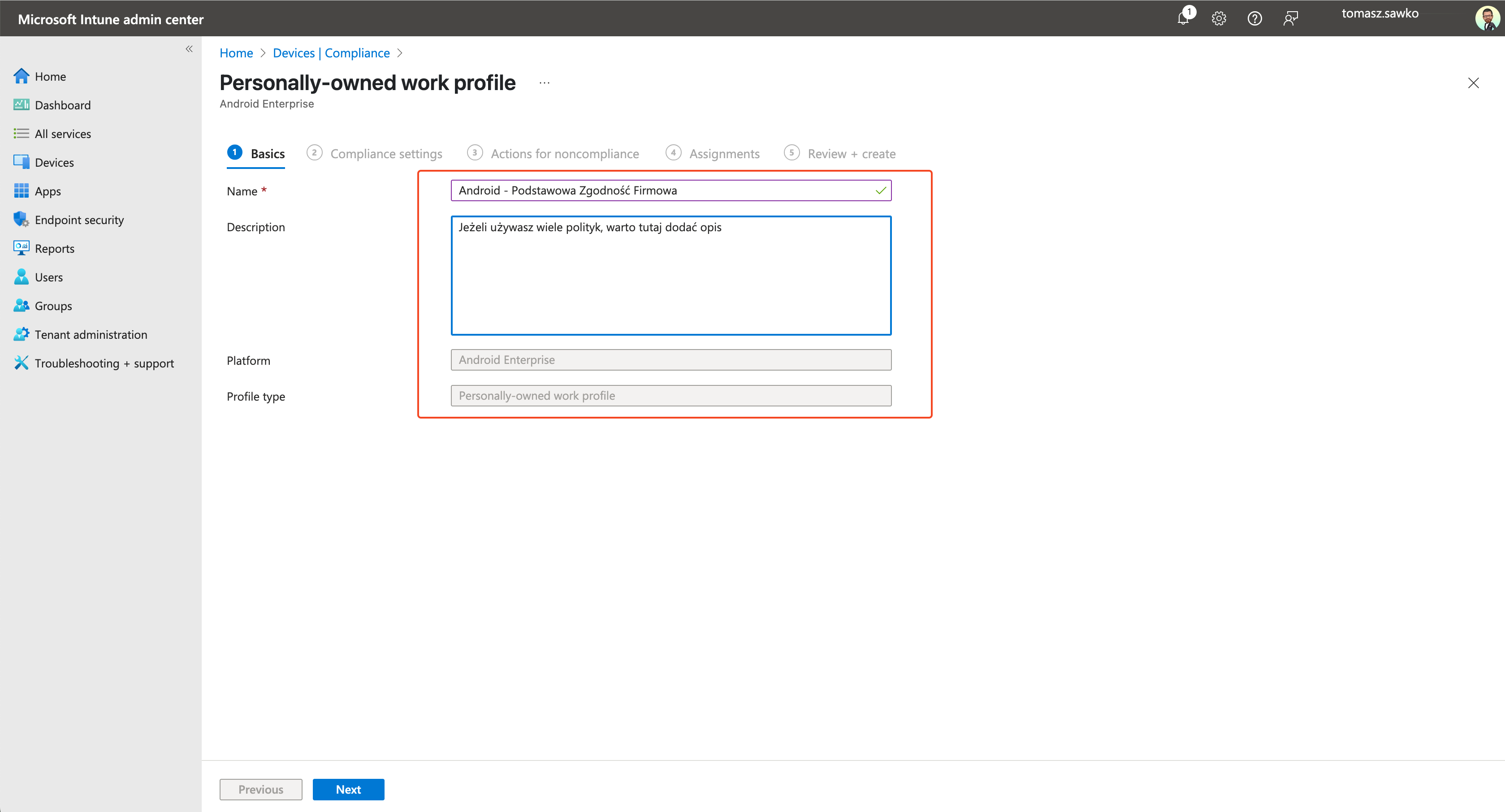
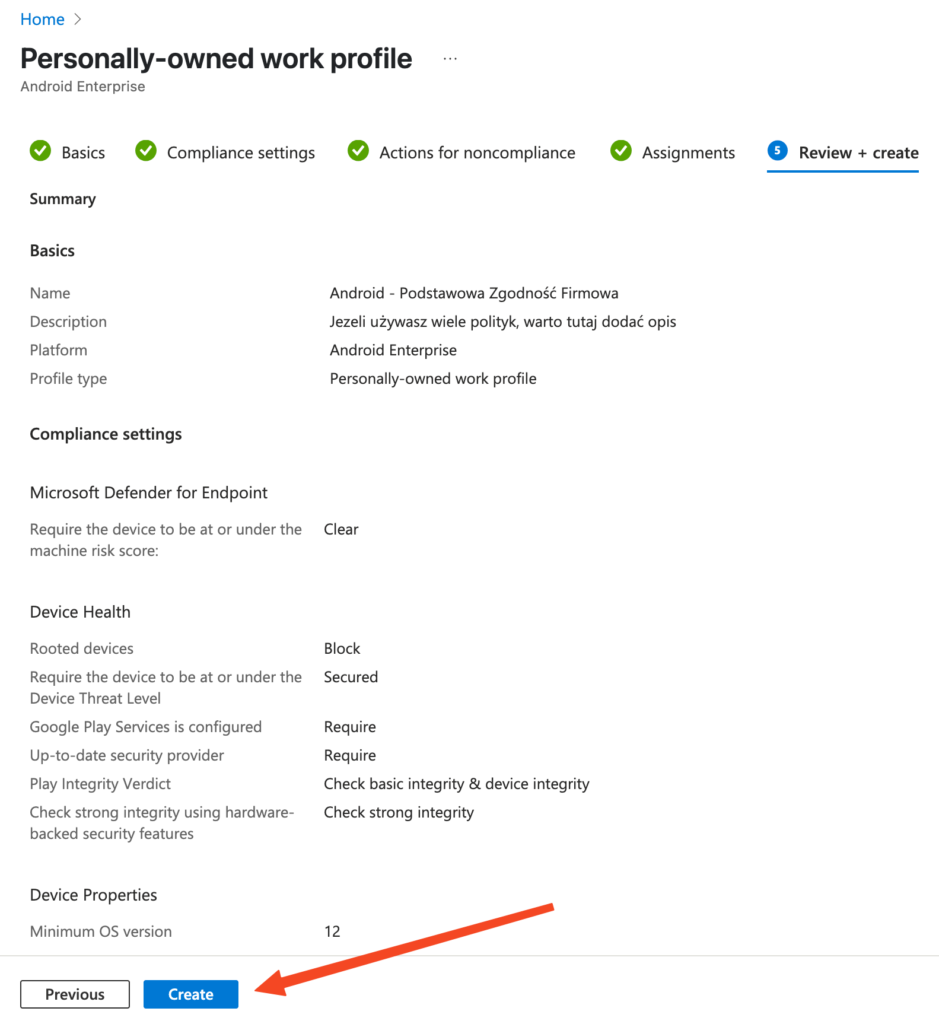
Provide a name for our policy, e.g., „Android – Basic Corporate Compliance” and optionally a description. Click Next.
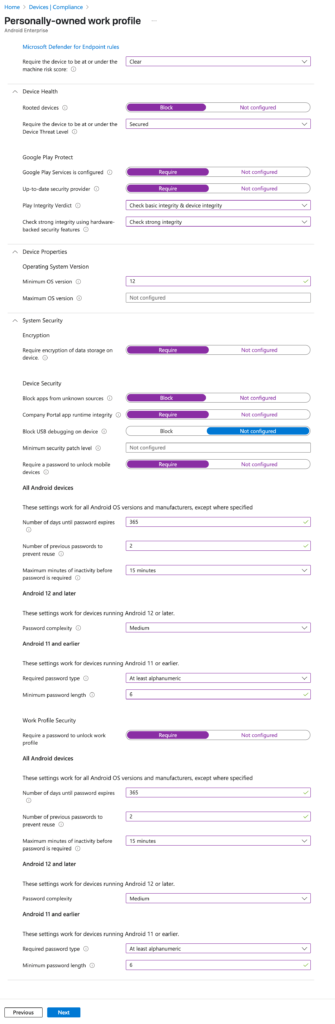
Now configure compliance settings. This is the heart of our policy. What can we require here?
Device Health: e.g., require that the device is not rooted.
Device Properties: e.g., minimum operating system version.
System Security:
Require a password to unlock the device: absolute basic!
Minimum password length, complexity, etc.: set password strength requirements.
Encryption of data storage on device: another must-have.
Review available options and select those that are key for you. Don’t overdo it at first, it’s better to start with basics and tighten the screws if needed.
Click Next.
In the Actions for noncompliance section, we can define what should happen when a device doesn’t meet requirements. By default, it’s Mark device noncompliant – and this is crucial for Conditional Access. We can also add sending an email to the user with instructions on how to fix the situation. Let’s set the default action (Mark as noncompliant) immediately (0 days delay). Click Next.
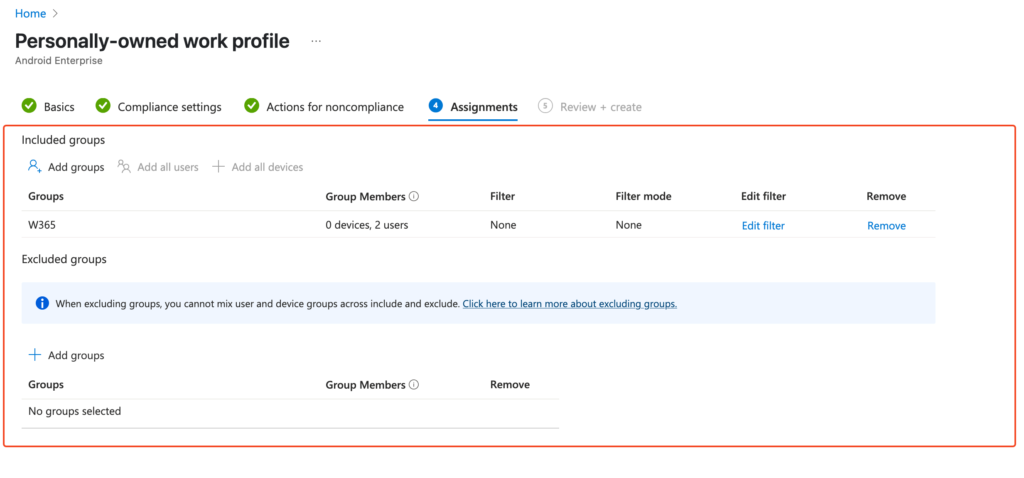
In the Assignments section, select the group (or groups) of users or devices to which this policy should be applied. Important: Assign it to the same group that you’ll later cover with the Conditional Access policy. Click Next.
Review settings and if everything looks good, click Create.
Bravo! You’ve just defined what a „compliant” Android device means in your company. Repeat this process for other platforms (iOS, Windows, macOS) if you manage them.
Step 2: Setting up the gate – Conditional Access Policy in Azure AD
Now it’s time for our bouncer to work. We’ll configure a Conditional Access policy in Azure AD that will check „tickets” from Intune.
Log in to the Azure portal (portal.azure.com).
Search for and navigate to Azure Active Directory/Microsoft Entra ID.
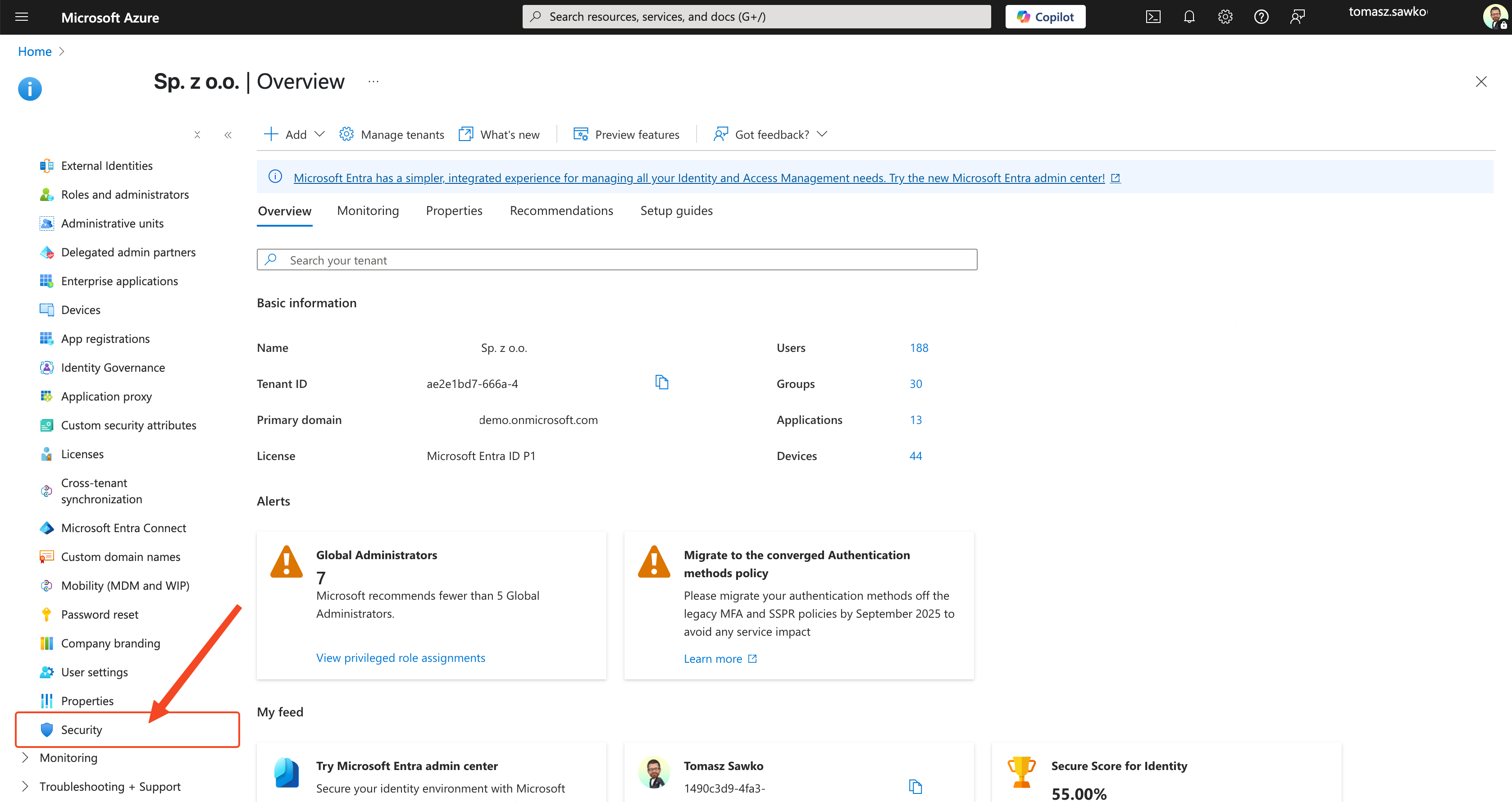
In the Azure AD menu on the left, select Security.
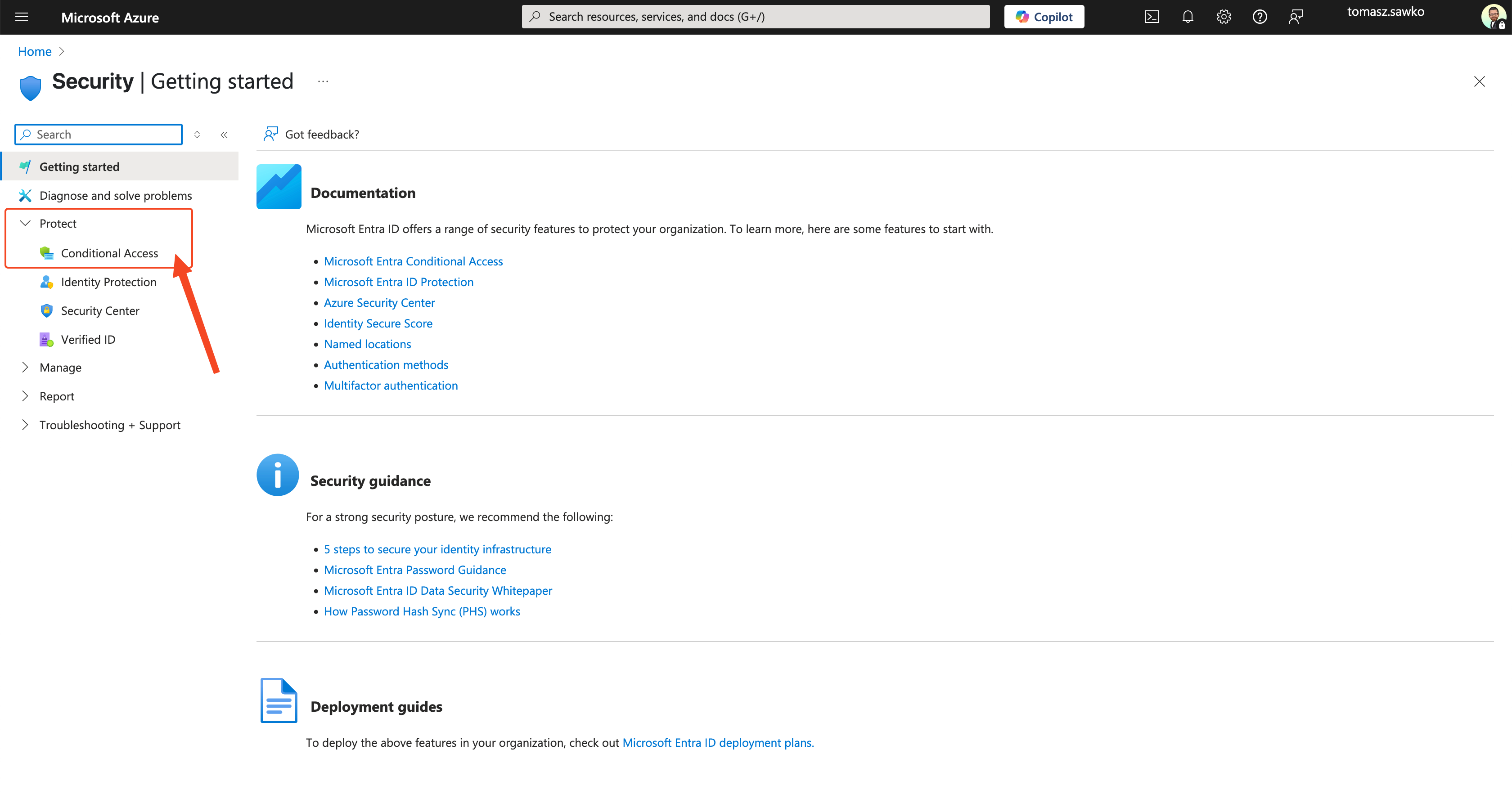
In the Security section, select Conditional Access.
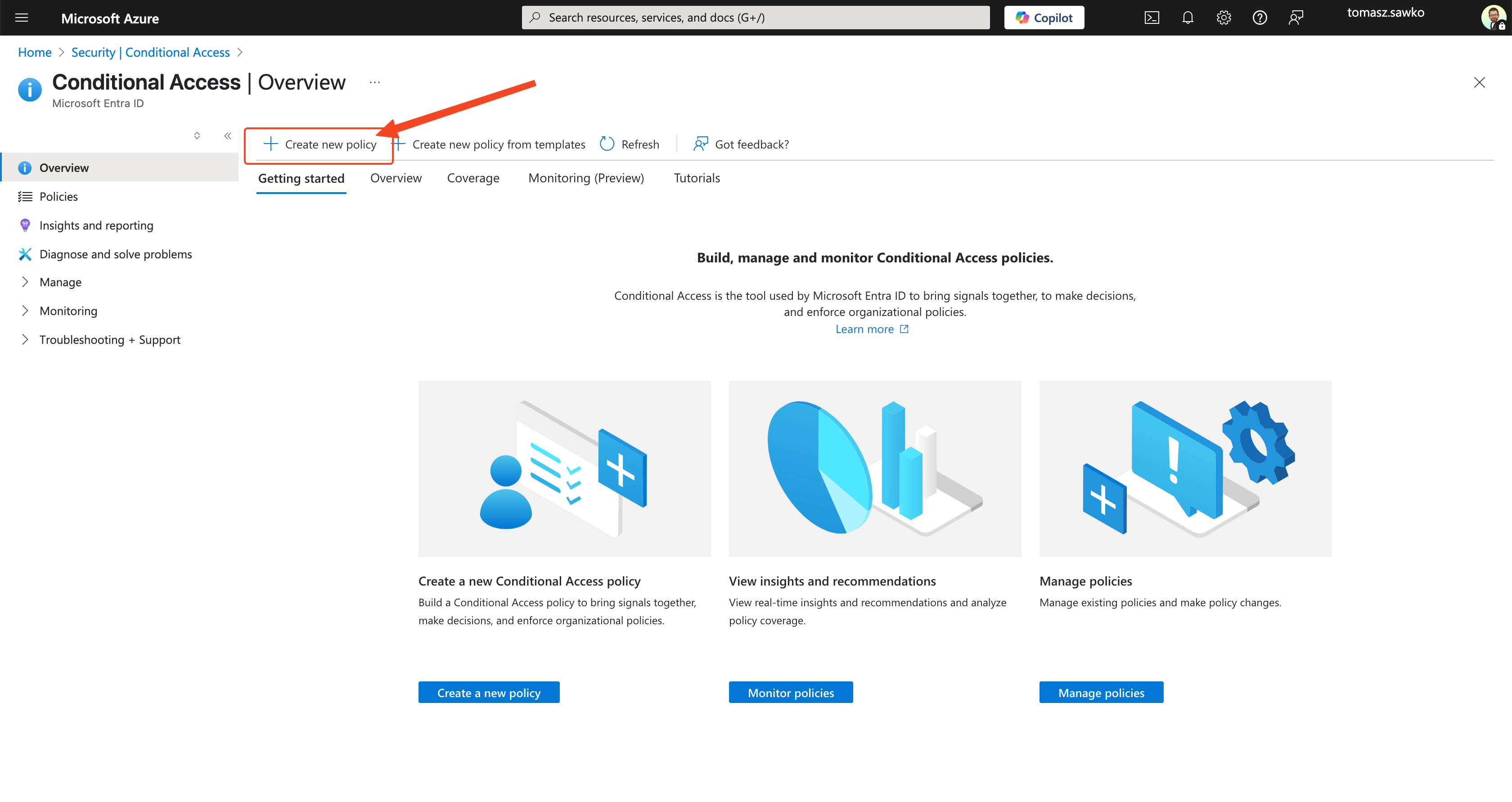
Click New policy.
Name our policy, e.g., „CA – Require compliant device for O365”.
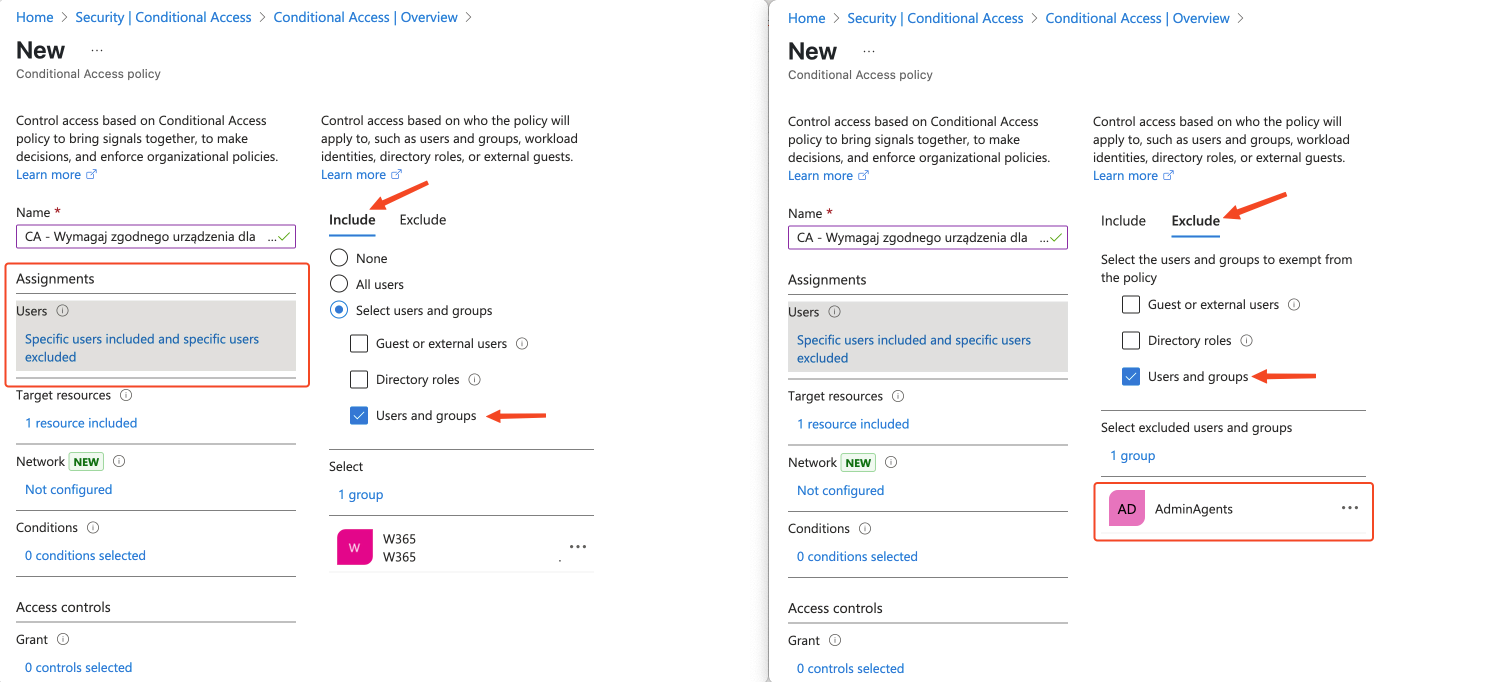
In the Assignments -> Users and groups section:
Select who the policy should apply to. Usually we select Select users and groups-> Users and groups and indicate the same group to which we assigned the compliance policy in Intune. We can also initially exclude, for example, an administrator group or break-glass account just in case.
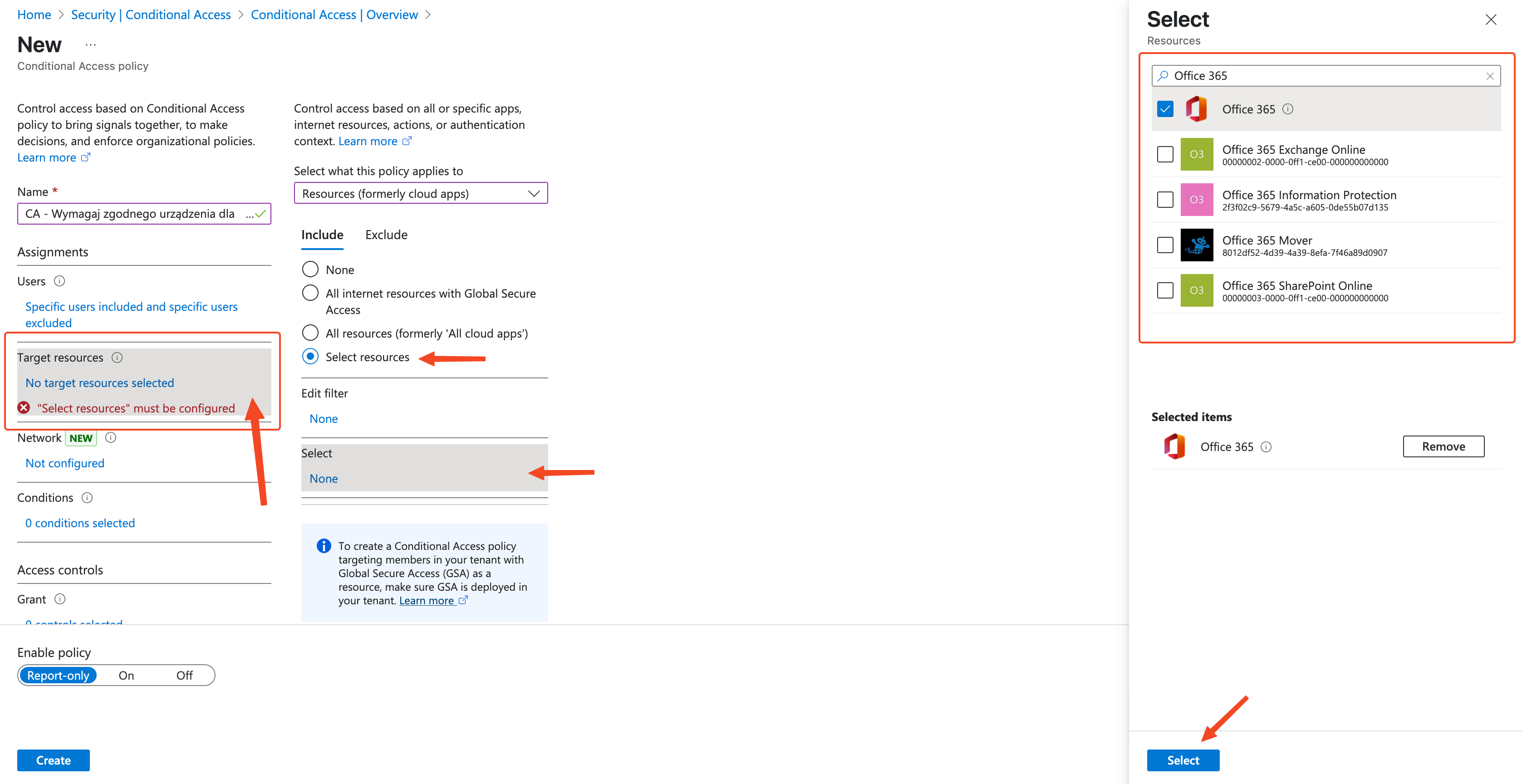
In the Cloud apps or actions/ Target resources section:
Select Select apps.
Search for and select Office 365. This will cover most popular services like Exchange Online, SharePoint Online, Teams, etc.
In the Conditions section – here we can add additional conditions, e.g., regarding device platform, location, etc. For now, we can leave the defaults, unless we want to apply this policy only to mobile devices, for example.
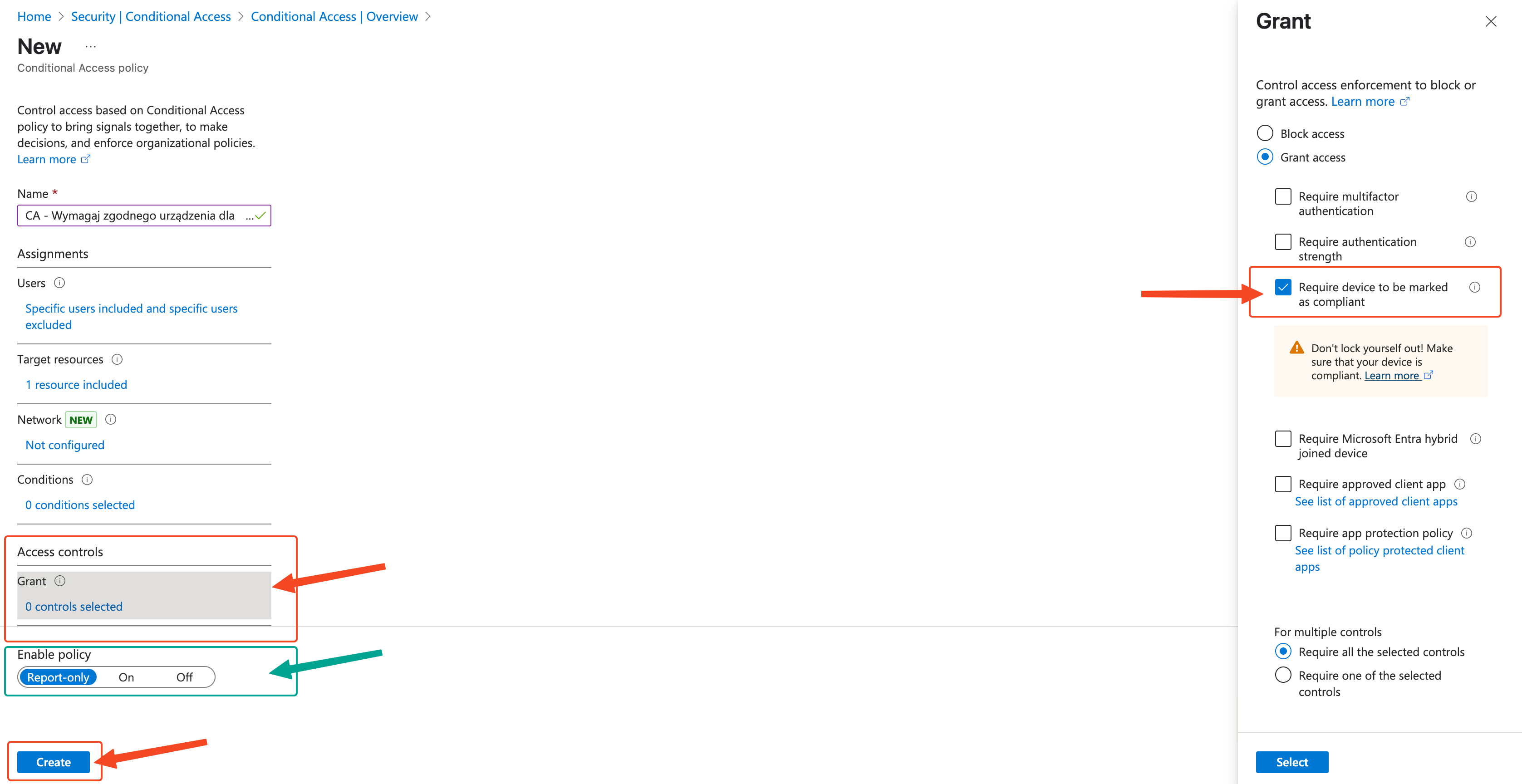
In the Access controls -> Grant section:
Select Grant access.
Choose the key option: Require device to be marked as compliant.
Make sure that for multiple controls, „Require all the selected controls” is selected – although in this case we only have one.
Click Select.
At the bottom, in the Enable policy section:
I highly recommend starting with Report-only mode. This way the policy will run „dry” – you’ll see in the logs who would have been blocked, but you won’t actually cut off anyone’s access. This gives time for verification and communication with users.
When you’re sure everything works as it should, you’ll change the status to On.
Click Create.
And voilà! Our intelligent bouncer has been configured. Now Azure AD will check with Intune at every attempt to access Office 365 by a user from the assigned group, whether the device they’re connecting from is compliant with the policy we set in Step 1.
Step 3: The Big Test – does the bouncer work?
Theory is theory, but practice makes perfect (and helps avoid calls from angry users at 7 AM). Time to test our creation:
Test on a compliant device: take a device (e.g., smartphone) that is registered in Intune and meets all compliance policy requirements (has a PIN, is encrypted, etc.). Try logging into an Office 365 app on it (e.g., Outlook Mobile). You should get access without problems.
Test on a non-compliant device: now take a device that doesn’t meet the requirements (e.g., doesn’t have a PIN set if you required it, or is rooted). Try logging into the same app. This time you should see a message informing you that access has been blocked because the device doesn’t meet the organization’s requirements. Usually there will also be a link or hint about what to do to make the device compliant (e.g., „Set a PIN code”, „Install updates”).
Check logs (in Report-only mode): if you set the policy to „Report-only” mode, check the sign-in logs in Azure AD (Azure AD -> Monitoring -> Sign-in logs). For sign-ins that would have been blocked, you’ll see the appropriate status in the „Report-only” tab.
Remember that synchronization of compliance status between Intune and Azure AD may take a while, so give the system a few to several minutes after making changes or fixing non-compliance on a device.
Summary
Congratulations! You’ve just implemented one of the fundamental security measures for accessing data in the Microsoft cloud. Requiring compliant devices through Conditional Access significantly raises the security level, limiting the risk of data leakage from unsecured or compromised devices.
Of course, this is just the beginning. Conditional Access offers much more possibilities – we can add conditions based on location, sign-in risk (requires P2), require MFA, and many others. But this first step – linking device compliance with access – is crucial.
Remember to communicate with users before enabling the policy in „On” mode. Explain to them why you’re doing this and what they need to do to make their devices compliant. A bit of prevention will save you a lot of helpdesk work later. 😊
Podając swój adres e-mail wyrażasz zgodę na przetwarzanie Twoich danych przez serwis follow.it. Zapoznaj się z Regulaminem oraz Polityką Prywatności serwisu.
Cześć! Dziś na warsztat bierzemy temat, który spędza sen z powiek wielu adminom, a jednocześnie jest jednym z najpotężniejszych narzędzi w arsenale Microsoftu do ochrony firmowych...
Tradycyjne podejście do bezpieczeństwa IT staje się coraz mniej skuteczne w dobie pracy zdalnej, chmury obliczeniowej i wszechobecnych urządzeń mobilnych. W odpowiedzi na te...














 Follow.it