News
forum.omdm.pl
because there really wasn't anywhere to talk

filtruj po kategorii
Filtruj po autorze

because there really wasn't anywhere to talk
What does this mean for MDM administrators?

Your digital bodyguard who never sleeps (and never takes a vacation)

How Samsung closes doors that others don't even see

A practical guide to Intune and Knox Manage

Samsung split Knox Suite into three plans: Base, Essentials, and Enterprise (plus a somewhat hidden Companion Plan). Sounds like a sensible restructuring? Probably looked great on the slide deck in Seoul. In practice, it mostly raises questions — which plan is enough for a 50-person sales team, what does Enterprise actually add over Essentials, and why on earth is there still no public pricing. I break down each plan component by component, compare them side by side, and give concrete recommendations for different types of organizations.

In-depth analysis for small, medium-sized, large enterprises, and the public sector (2024/2025)

MDM – managing devices in an organization

A comprehensive guide that will save you dozens of hours
How EMM/MDM fits into modern security architecture
Today there won’t be any MDM configuration, no system comparisons, and no step-by-step guides. Today I’m launching a forum. And I want to tell you why — and how I built it.
On April 30, 2025, I published the first post on this blog. Today marks exactly one year.
I suppose I should now write about how I made my first million this year, about the online courses I can barely keep up producing, and about how my mindset has shifted — after all, after a year of being an “internet creator,” I’ve produced so much in-demand content that I can’t keep count of the $$$… riiight.
But I won’t. After a year of “creating,” I can boast publishing 12 articles, which, as you can easily calculate, averages out to one article per month. Seemingly nothing spectacular. But considering that my articles aren’t news posts — each one is several thousand words and dozens of hours of work: research, verification, writing, screenshots, revisions — it’s not bad. It could be better, but it’s not bad.
And now, back to the topic…

Over the past few months, I’ve been regularly receiving messages from blog readers with more or less the same message: “great that you’re writing, but where can we talk?” Comments under articles aren’t the same as a discussion. Everyone writes their own thing, nobody answers other people’s specific questions, the topic dies off after a week.
During this time, I was also observing the market landscape: there are industry meetups for Mac Admins (I’ve never attended, but I need to catch up — apparently they’re great), there are webinars organized by individual MDM vendors and their resellers, there are LinkedIn groups. But each of these places has its own flaw — either it’s dominated by a single vendor, or it’s too sales-oriented, or it’s in English, or it’s ephemeral like Slack with history only going back so far.
I couldn’t find a single place where a Proget MDM administrator could ask someone managing Knox Manage about their approach to COPE, while someone from Motorola could drop information about a new ThinkShield feature without the marketing packaging. Vendors and administrators in one place, on equal terms, without a paywall and without journalistic moderation.
So I decided there would be no better moment to open a forum.
I considered several options. Discourse is popular, but it’s heavy and has its own visual style that’s hard to break away from. Reddit-like boards are too random. LinkedIn groups have no structure and get swallowed by the algorithm. Facebook groups — same thing. Slack and Discord — great for real-time chat, terrible as a knowledge archive.
NodeBB won for three reasons. First, it has a sensible category and topic system, plus a great search engine — it’s suited for building a knowledge base, not just real-time chat. Second, it’s based on Node.js with an open plugin API, which turned out to be important for reasons I’ll describe shortly. Third, it has a decent and reasonably modern interface that doesn’t look like a relic from 2003.
This is where things get a bit more technical. NodeBB in its default configuration is a solid platform, but there were several things I had to write myself. It ended up being four custom plugins.
This was the starting point for the entire “forum with extras” project. I don’t want to spend my life manually moderating spam. On the other hand, I also don’t want a simple list of banned words, because those are trivial to circumvent and also block half of legitimate technical discussions (the word “exploit” in the context of MDM security is not spam).
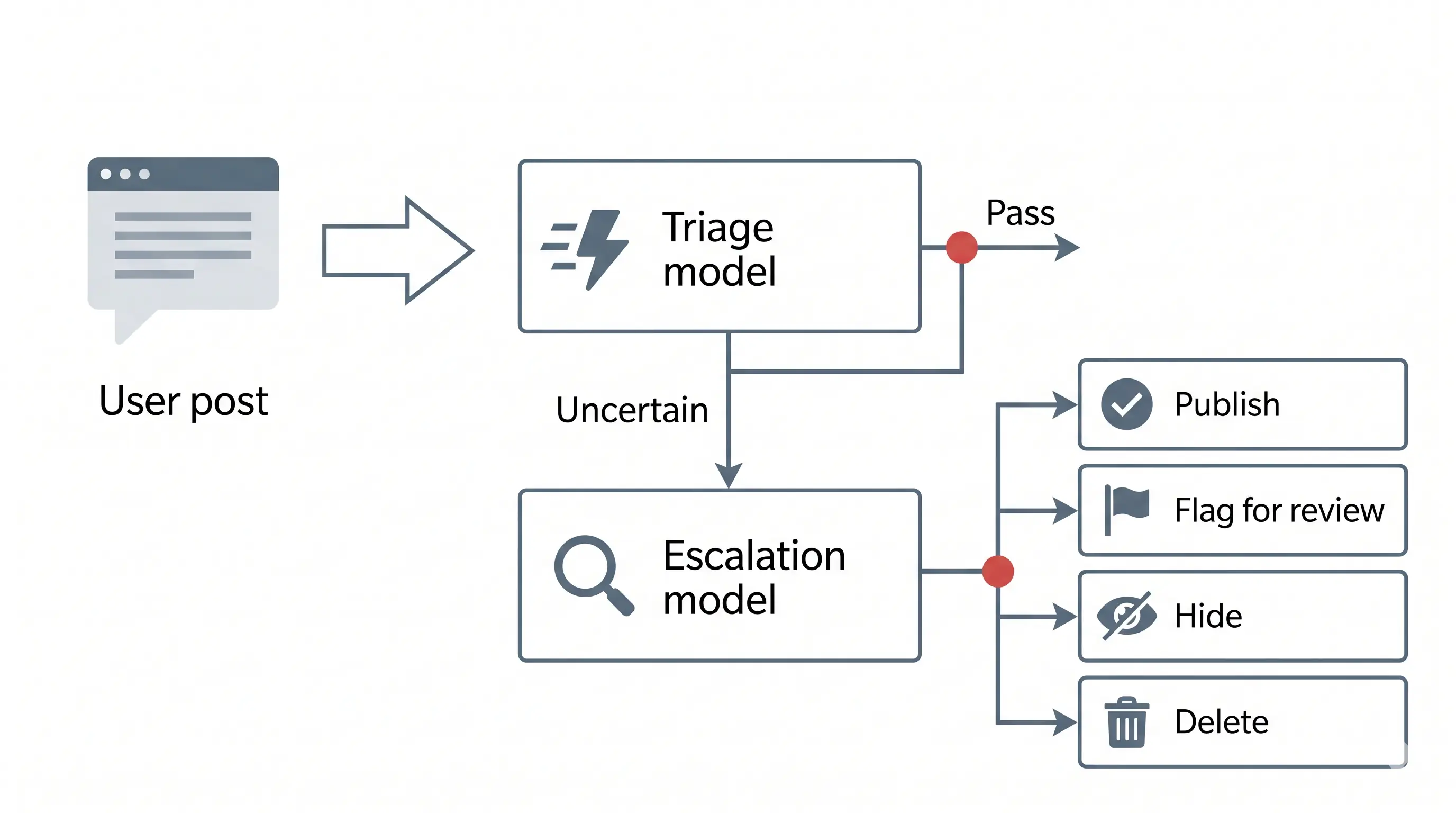
So I built a plugin with a two-stage AI pipeline. The first stage is a quick triage based on Gemini Flash Lite — it analyzes every post for spam, toxicity, NSFW content, personal data, and unauthorized promotion while it’s being written. If the model isn’t confident in its analysis, it escalates to Claude Haiku, which does a deeper review. Every decision goes into an audit log, a moderator can review and override it. There are no automatic bans — there’s automatic flagging and optional post hiding pending verification.
Initial tests on 200 sample posts showed 100% effectiveness. How it will perform in reality — time will tell.
GDPR requires that personal data be stored no longer than necessary. For a forum, this means that inactive accounts should be deleted after a specified period. NodeBB has no built-in mechanism to “take care of” this area — it simply accumulates accounts indefinitely.
So I wrote another plugin that scans accounts daily for activity and sends reminders 30 and 7 days before the planned deletion. The email contains a tokenized “keep my account” link — one click resets the counter without requiring a login. An account that doesn’t respond for 12 months is deleted, while posts remain on the forum as anonymous entries. Every operation is recorded in a log with a hash of the email address, so compliance can be proven without storing the actual address.
By default, NodeBB saves uploaded files to the server’s local disk. The fundamental drawback of this approach is that the server disk fills up quickly. The NodeBB community has a solution for this — a simple plugin integrating the S3 API to send files to Amazon’s cloud or compatible services. After examining the plugin, another flaw emerged — the plugin has no built-in access control — anyone with the file URL can see it, regardless of category permissions.
So again — I built another plugin that routes all files to Backblaze B2 via the S3-compatible API. Files are in a private bucket. Instead of direct B2 URLs in post content, addresses go through a custom proxy that checks whether the user has read permissions for the given category before issuing a presigned URL. A file from a private category is not accessible without permissions, even if someone copies the URL.
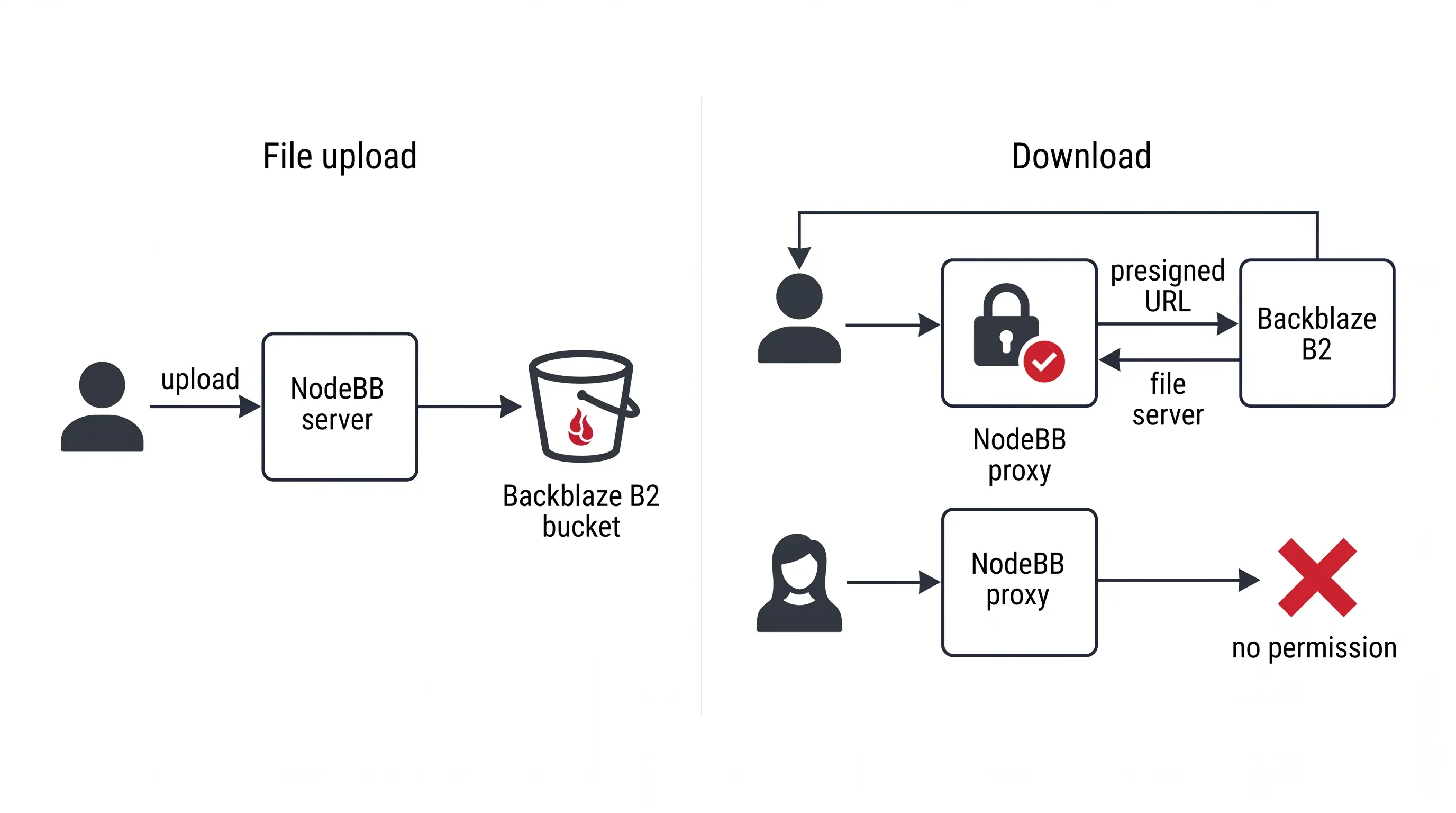
On top of that, a CDN from European Bunny.net, and both problems are solved — the server disk remains available for system files, while uploaded images and files are subject to retention and access control.
Forum registration requires protection against bots. Existing plugins for NodeBB are quite outdated, not necessarily kept up to date, and they bundle multiple providers in one package — reCAPTCHA, hCaptcha, Akismet, honeypot, and several others. That’s a lot of surface area to maintain, a lot of dependencies, and therefore a lot of unnecessary potential attack vectors.
And so the last plugin was born — for Cloudflare Turnstile. It does one thing: places a component on the registration/login form and verifies the token server-side. Turnstile is privacy-friendly — no retyping blurry letters, no clicking on traffic lights, no selecting images with bridges. Most users pass verification without any interaction — which is exactly what I wanted — bots and web crawlers are turned away, but real users aren’t inconvenienced.
If you use NodeBB in your own projects, the plugins might be useful to you as well. You’ll find all of them described on my GitHub.
The category structure is divided by MDM systems and platforms:
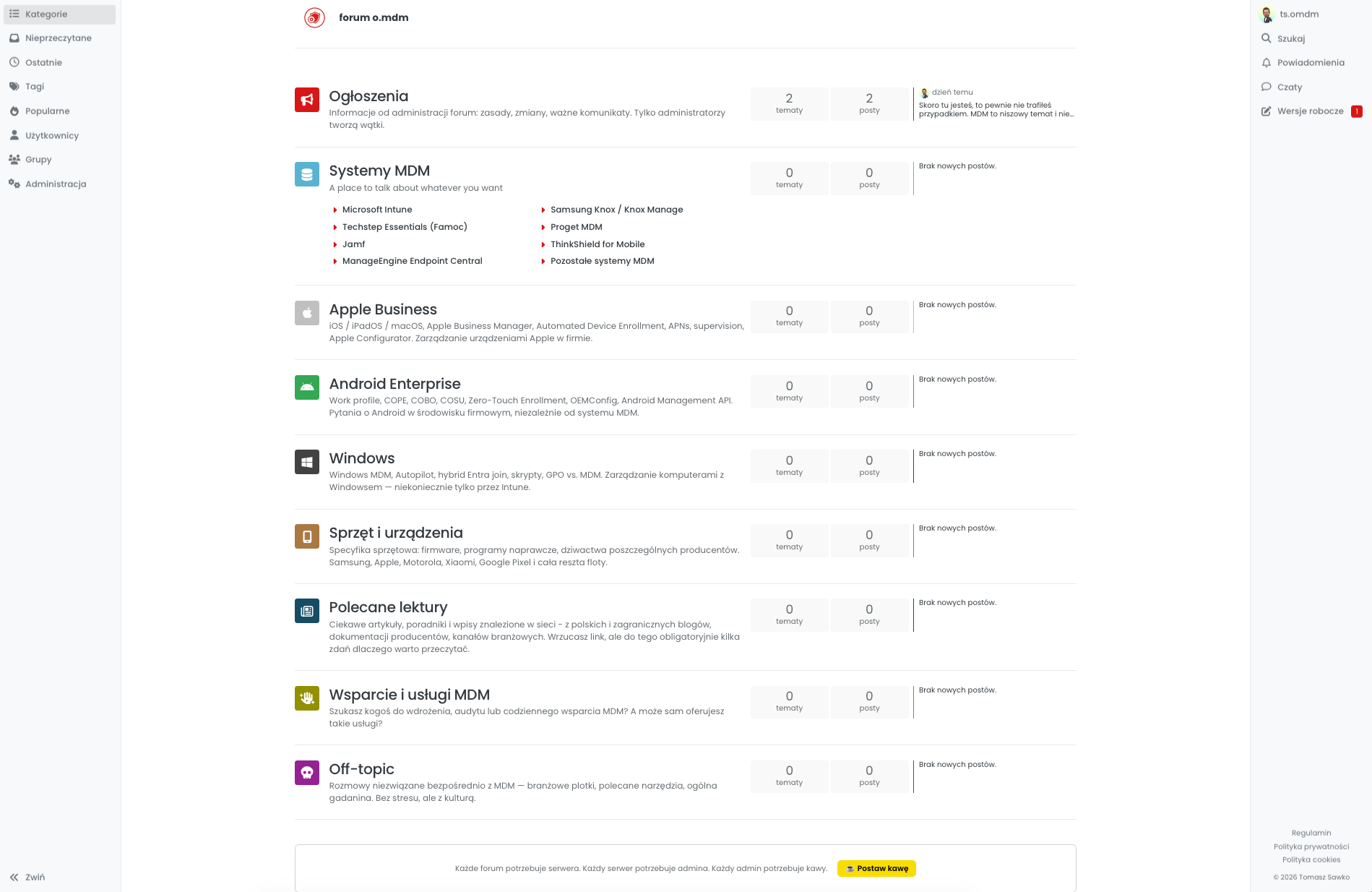
The structure is fairly typical.
The first section is Announcements, where all administrative communications related to the forum’s operation will appear. There’s also a thread here that will allow each of you to introduce yourself to others, which I of course encourage.
Then we have dedicated categories for: Microsoft Intune, Techstep Essentials MDM, Proget MDM, Jamf, ThinkShield from Motorola, ManageEngine, and a broader category for other unlisted MDM/EMM systems.
Further along, there are areas for discussions on topics related to Apple Business, Android Enterprise, Windows, and all kinds of hardware that each of us encounters in our daily work.
Recommended Reading — a place for interesting articles found online, not only mine ¯_(ツ)_/¯
There’s also a MDM Support and Services section — for those looking for someone to handle an implementation or audit, and for those who offer such services.
The forum has a reputation system that automatically assigns ranks to users.
| Reputation (condition) | Rank |
|---|---|
| >= 5 | Supervised |
| >= 25 | Policy Applied |
| >= 100 | Fully Managed |
| >= 300 | Knox Active |
| >= 500 | Zero Touch |
| >= 100 | MDM Architect |
The Supervised rank (5 points) unlocks chat, voting, and the ability to post links in posts. Reputation points are awarded automatically according to the table you’ll find in the Terms of Service.
The forum is free and will remain so. I have no monetization plan based on access. Maintenance is a private initiative, hence the Buy Me a Coffee button in the footer of some forum pages — optional, no guilt trips.
This is not a sales venue. Hardware manufacturers and MDM vendors are welcome — I know many of you personally and I’m counting on you to show up. But the rules are clear: you can share information about products, answer questions, offer demo accounts and demo sets. However, you cannot actively sell or pretend to be independent administrators. Details are in the forum rules.
The forum is also not a place for political discussions (in any dimension) or industry flame wars. If you think Intune is better than Knox Manage — write why, with technical arguments. Discussion is absolutely welcome. Trolling and personal attacks — no.
All legal documents — Terms of Service, Privacy Policy, Cookie Policy — are available on the forum and written in plain language, without legal jargon.
You’ll find the forum at forum.omdm.pl. Registration is open. If you’ve been reading this blog for some time — you already have some idea of who you’re talking to. You’re welcome to join.
You’ll go there and see empty categories. Zero threads, zero posts, zero discussions. That’s normal — the forum has just launched and is a blank slate.
This is not a mistake and not a technical error. Simply nobody has written anything yet.
And that’s precisely the point: the forum is only as valuable as the content you create in it. I built the infrastructure — categories, rules, reputation system, moderation. But I can’t produce the content on my own, because… that’s not the point. The forum is meant to be a place for exchanging experiences among many admins, not another place where I write monologues.
So if you have a configuration question, a problem that’s been blocking you for a week, an interesting deployment case, or an article that recently caught your attention — this is the right moment to post it. The first post, the first thread, the first discussion. Someone has to start.
If you know any MDM admins who could benefit — send them the link. The more people with real experience in the first few weeks, the faster the forum will gain value for everyone.
PS. Once you decide to join and register, drop by the “Forum Rules” thread — these are the basics that apply to all of us. Then head over to the “Introduce Yourself” section and write a few words about yourself — we’d love to get to know you 😉
See you on the forum.