o.mdm

Kategorie wpisów

  • Analizy 1
  • Guides 3
  • News 4
  • Newsy 4
  • Poradniki 3

Ważne linki

  • O mnie
  • Polityka Prywatności
  • Polityka Plików Cookies
  • Newsletter o.mdm
  • Kontakt
  • Articles in English

Tagi

Android Android Enterprise Apple Apple Business Manager Conditional Access Declarative Device Management Dostęp Warunkowy Drop Intune Ivanti Neurons Knox Knox Manage ManageEngine Matrix42 Microsoft Migracja Mobile Device Management Moto Device Manager Omnissa Workspace One PROGET Samsung SOTI MobiControl TechStep ThinkUEM Webinar PlusINSIDER Windows Autopilot WWDC Zero Touch Zero Trust

© 2025 o.mdm • tomek sawko
wszelkie prawa zastrzeżone

logo icon credits • pngall.com

Powiązane wpisy

filtruj po kategorii

  • Newsy(4)
  • News(4)
  • Poradniki(3)
  • Guides(3)
  • Analizy(1)

Filtruj po autorze

  • Tomek Sawko Tomek Sawko (15)
Android Zero Touch with Microsoft Intune
Guides

Android Zero Touch with Microsoft Intune

A comprehensive guide that will save you dozens of hours
Opublikowane 15 godzin temu przez Tomek Sawko

Zero Trust on Mobile Devices
News

Zero Trust on Mobile Devices

How EMM/MDM fits into modern security architecture

Opublikowane 15 godzin temu przez Tomek Sawko

Knox Manage doesn’t just stand by Samsung
Guides

Knox Manage doesn’t just stand by Samsung

So Samsung has created an MDM tool that speaks three languages fluently

Opublikowane 17 godzin temu przez Tomek Sawko

WWDC ’25 Through the Eyes of an MDM Admin
News

WWDC ’25 Through the Eyes of an MDM Admin

Apple has swept the board! MDM migration, iPhone login, and other new features

Opublikowane 18 godzin temu przez Tomek Sawko

Android Enterprise drop 06/2025
News

Android Enterprise drop 06/2025

New tools in the hands of the MDM administrator

Opublikowane 18 godzin temu przez Tomek Sawko

Conditional Access
Guides

Conditional Access

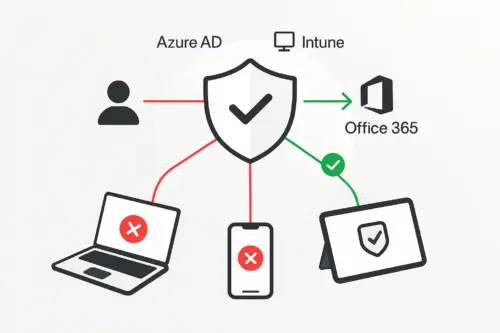
Secure Office 365 by requiring compliant devices!

Opublikowane 1 dzień temu przez Tomek Sawko

WWDC ’25 okiem Admina MDM
Newsy

WWDC ’25 okiem Admina MDM

Apple pozamiatało! Migracja MDM, logowanie iPhonem i inne nowości

Opublikowane : 20th czerwiec 2025 przez Tomek Sawko

Android Enterprise drop 06/2025
Newsy

Android Enterprise drop 06/2025

Nowe narzędzia w rękach administratora MDM

Opublikowane : 18th czerwiec 2025 przez Tomek Sawko

Knox Manage nie tylko Samsungiem stoi
Poradniki

Knox Manage nie tylko Samsungiem stoi

Czyli Samsung stworzył narzędzie MDM, które mówi płynnie w trzech językach

Opublikowane : 15th czerwiec 2025 przez Tomek Sawko

Android Zero Touch z Microsoft Intune
Poradniki

Android Zero Touch z Microsoft Intune

Kompleksowy przewodnik, który zaoszczędzi Ci dziesiątki godzin

Opublikowane : 15th czerwiec 2025 przez Tomek Sawko

Zobacz najnowsze wpisy
Android Zero Touch with Microsoft Intune
Guides

Android Zero Touch with Microsoft Intune

A comprehensive guide that will save you dozens of hours

Tomek Sawko
Tomek Sawko
Android Zero Touch with Microsoft Intune
Opublikowane 15 godzin temu przez Tomek Sawko

🇵🇱 Przejdź do polskiej wersji tego wpisu / Go to polish version of this post

Introduction – what is this whole „Zero Touch” thing?

Sit back comfortably, because I’m taking you on a journey to a world where corporate Android smartphones configure themselves practically on their own. Today we’re taking on one of the favorite duets: Android Zero Touch and Microsoft Intune. I’ll show you how to combine these two powerful forces so that deploying new devices in your company is faster than your morning coffee.

No more manually clicking through dozens of screens on each new phone. No more asking users to „install something from the store”. We do it once, and we do it right. Automagically!

Imagine the ideal scenario: a courier brings a package with brand new smartphones to your company. You hand the box to an employee. They open it, turn on the phone, connect to Wi-Fi and… magic happens. The device knows on its own that it belongs to your company, downloads the appropriate configuration, installs business applications, sets passwords, Wi-Fi and whatever you wish. The user only needs to enter their login credentials and after a few minutes they have a fully ready, secure and managed work tool. That’s exactly what Android Zero Touch (AZT) is.
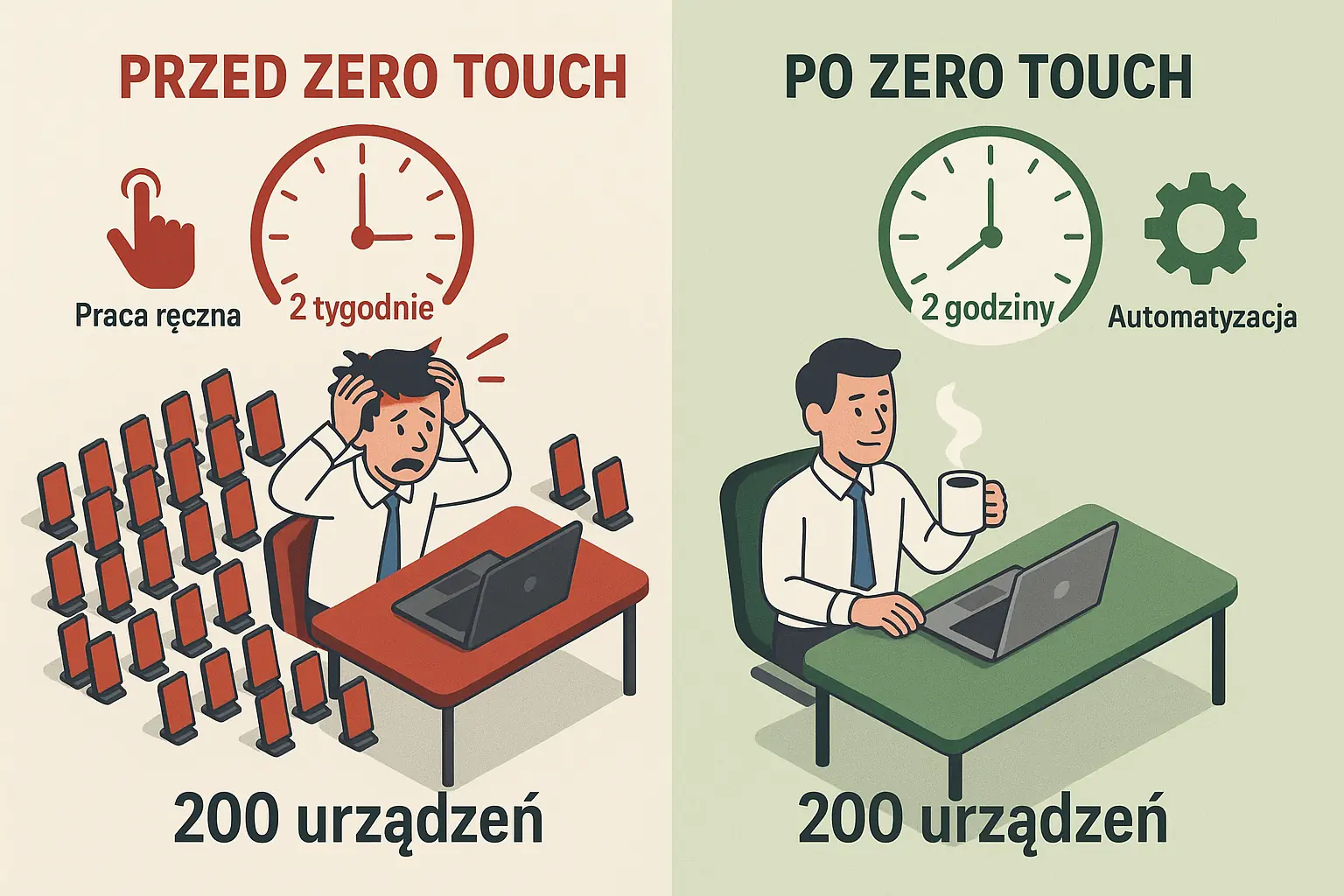
Zero Touch before and after

But awareness of belonging alone isn’t everything. The device still needs to know what to do. And here he enters the stage, all in white (or rather in blue) – Microsoft Intune, which will be the brain of the entire operation.

What will we need? (shopping and preparation list)

Before we start, make sure you have everything at hand. From experience, I know that missing one element can stop the entire process for long hours.

1. Compatible devices

Not every Android phone is suitable for this game. You need to have devices that:

  • run on Android 8.0 (Oreo) or newer (for Pixels, Android 7.0 is sufficient)
  • have support for Google Mobile Services (GMS) – meaning in practice they have access to Google Play Store
  • VERY IMPORTANT: were purchased from an authorized Zero Touch reseller who has the ability to add them to your portal

My advice: Before placing an order, ask your supplier directly (e.g., in the business service department of Plus, Orange or T-Mobile) whether the selected models are compatible with Zero Touch and whether they can register them for you.

2. Licenses and accounts

  • Active Microsoft Intune subscription (e.g., as part of Microsoft 365 Business Premium, E3, E5)
  • Administrator account in Microsoft 365/Intune with appropriate permissions (global administrator or Intune administrator).
  • Corporate Google account, which will serve to connect with Android Enterprise.
    VERY IMPORTANT: Don’t use a private account for this! Create a dedicated one, e.g., md*******@*********ny.com, and be sure to secure it with two-factor authentication (2FA).

How to create a dedicated Google account

1. Go to: https://accounts.google.com/signupwithoutgmail
2. Use a corporate email address like: md*******@*********ny.com
3. Be sure to enable two-step verification – seriously, I’m not kidding

3. Android Zero Touch Portal

And here we come to the key issue. You can’t „click through” the portal yourself. It must be created for you by an authorized reseller / Google partner.

How to get an account in the Zero Touch portal? (short instructions for the impatient):

  1. Contact your sales representative at the operator (e.g., at Plus, which has extensive experience in this).
  2. Request registration in the Android Zero Touch program. You will need to provide:
    • Email address associated with the Google account that will serve as administrator (the one you created in the previous step).
    • Full company name.
  3. The representative should request a Zero Touch customer number or create one for you. Write it down.
  4. Wait for an activation email from Google (usually takes 24 to 48 hours).
  5. After receiving the email, log in to https://partner.android.com/zerotouch and you’re done!

Part 1: Preparing the landing site in Microsoft Intune

Before devices start reporting, we need to prepare a place for them in Intune.

Step 1: Connecting Intune with Managed Google Play Store

This is the absolute foundation. If you already have this, skip to step 2.
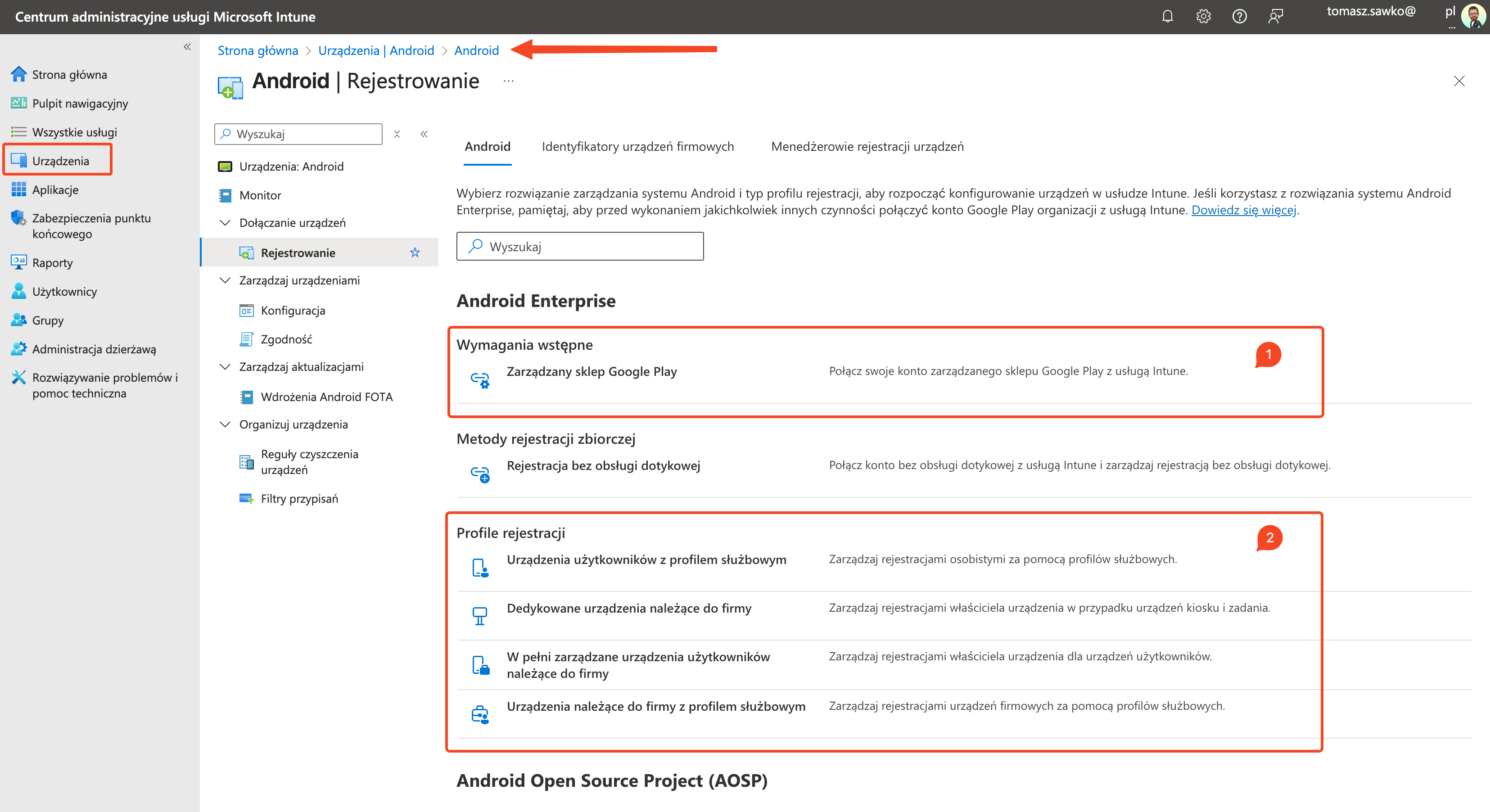
  1. In the Microsoft Intune admin center go to: Devices > Android > Android enrollment.
  2. Click on Managed Google Play [1].
  3. Check I agree and click Launch Google to connect now.
  4. Log in to your dedicated, corporate Google account.
  5. Follow the instructions to create the connection. The status in Intune should change to Active.
Intune Managed Play Store

Step 2: Creating an enrollment profile and obtaining a token

Now we’ll create a profile that will generate a „magic spell” for us – a token.

  1. Return to: Devices > Android > Enrollment.
  2. Select Enrollment Profile [2] – for the purposes of this article we’ll choose Corporate-owned, fully managed user devices.
  3. Click + Create profile. Name it sensibly, e.g., AZT - Default Profile.
  4. Go through the wizard and create the profile.
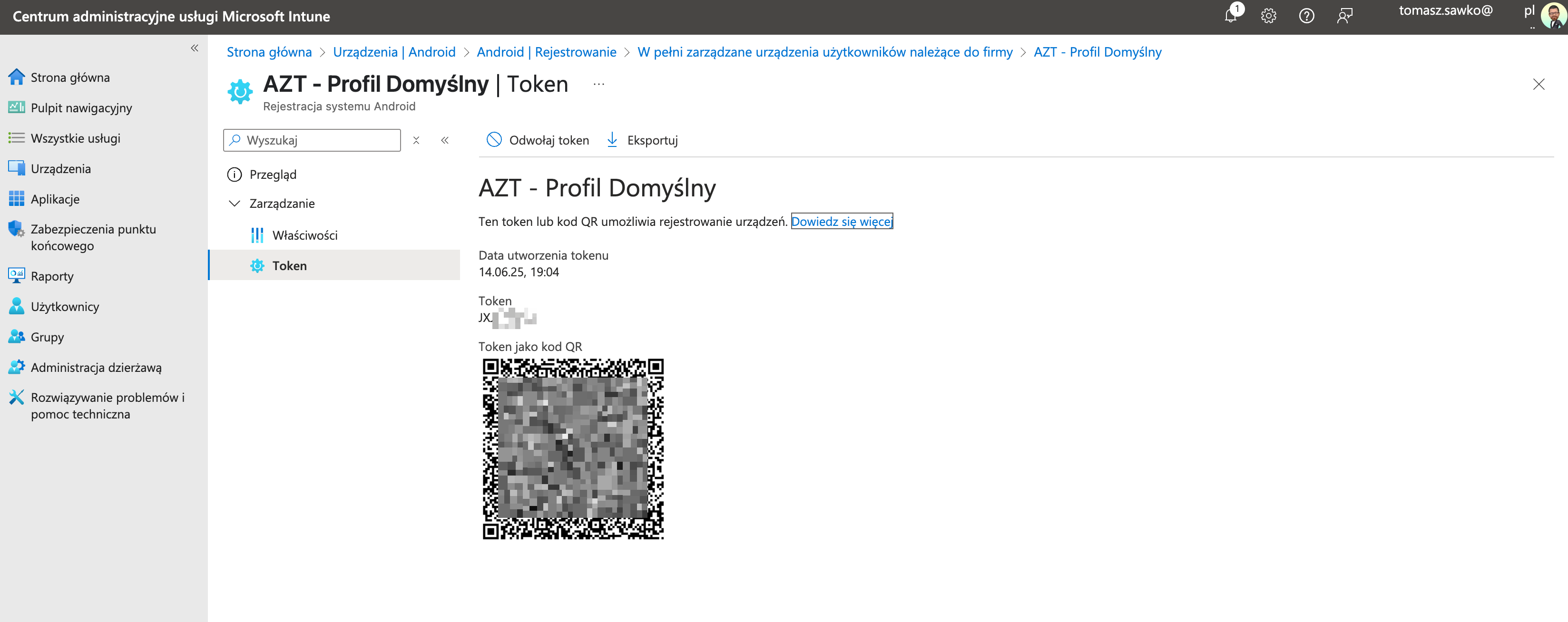
  5. After creation, click on its name in the list, then select Token.
  6. Click the Copy button. Keep this token in a safe place (e.g., in a password manager or Notepad). Treat it like a root password – don’t share it publicly!
Intune AZT Profile Token

Part 2: Configuration in the Zero Touch portal (two paths to the goal)

Now it’s time for magic in the AZT portal. You have two options.

Method 1: Quick integration via iFrame (for those who like simple solutions)

Intune offers a built-in, simplified tool for connecting with AZT. Ideal if you have one standard configuration for everyone.
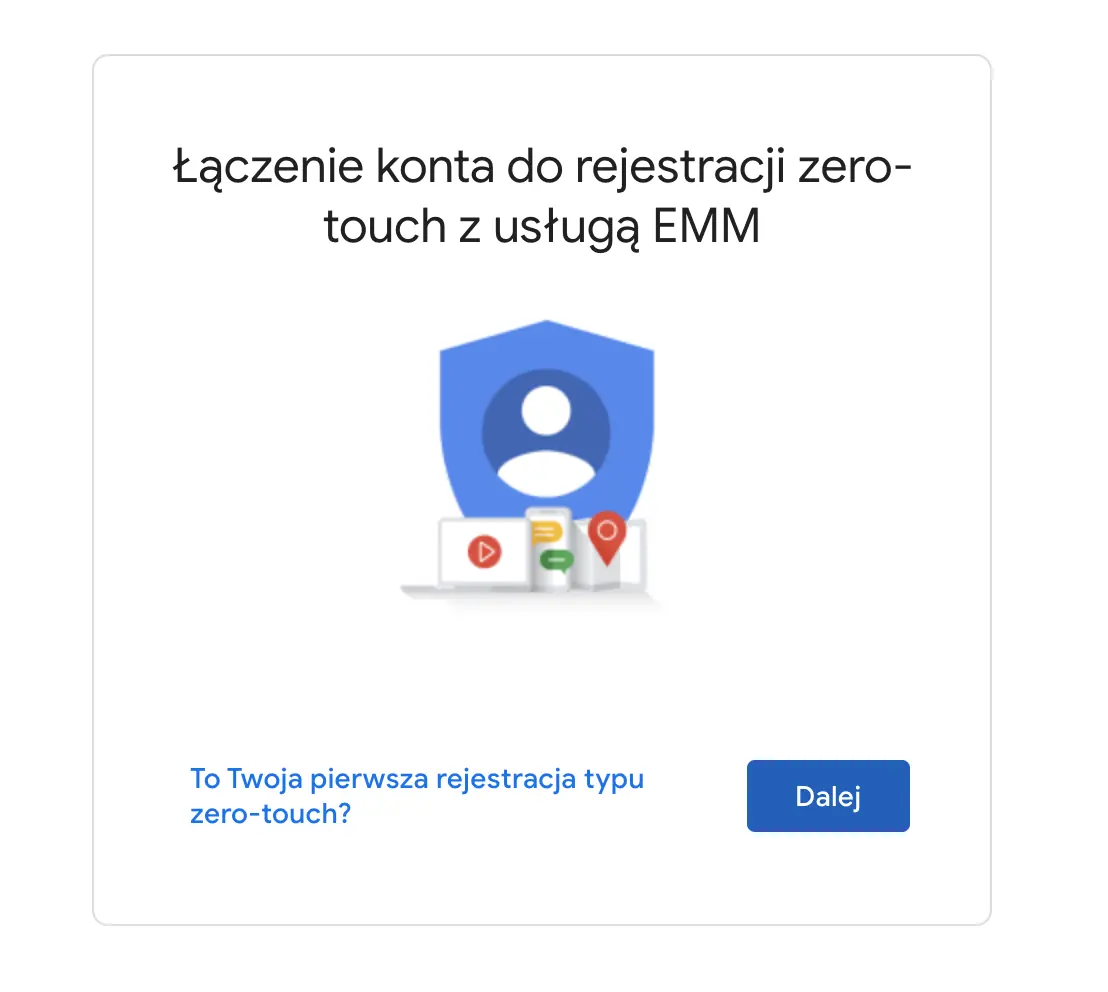
  1. In Intune go to: Devices > Android > Enrollment.
  2. Select Zero-touch enrollment.
  3. A window (iFrame) will open where you need to log in to your Google account from AZT.
  4. Select your Zero Touch organization and the default configuration you want to link. Fill in the technical support contact details.
  5. Save. Done.
Zero Touch Google Connect

Disadvantage: This method allows you to create only one default configuration. If you need different settings for different departments (e.g., salespeople with CRM, warehouse workers with a scanning app), you need to choose method #2.

Method 2: Manual configuration in the portal (for full control and perfectionists)

This is where the real, granular fun begins.
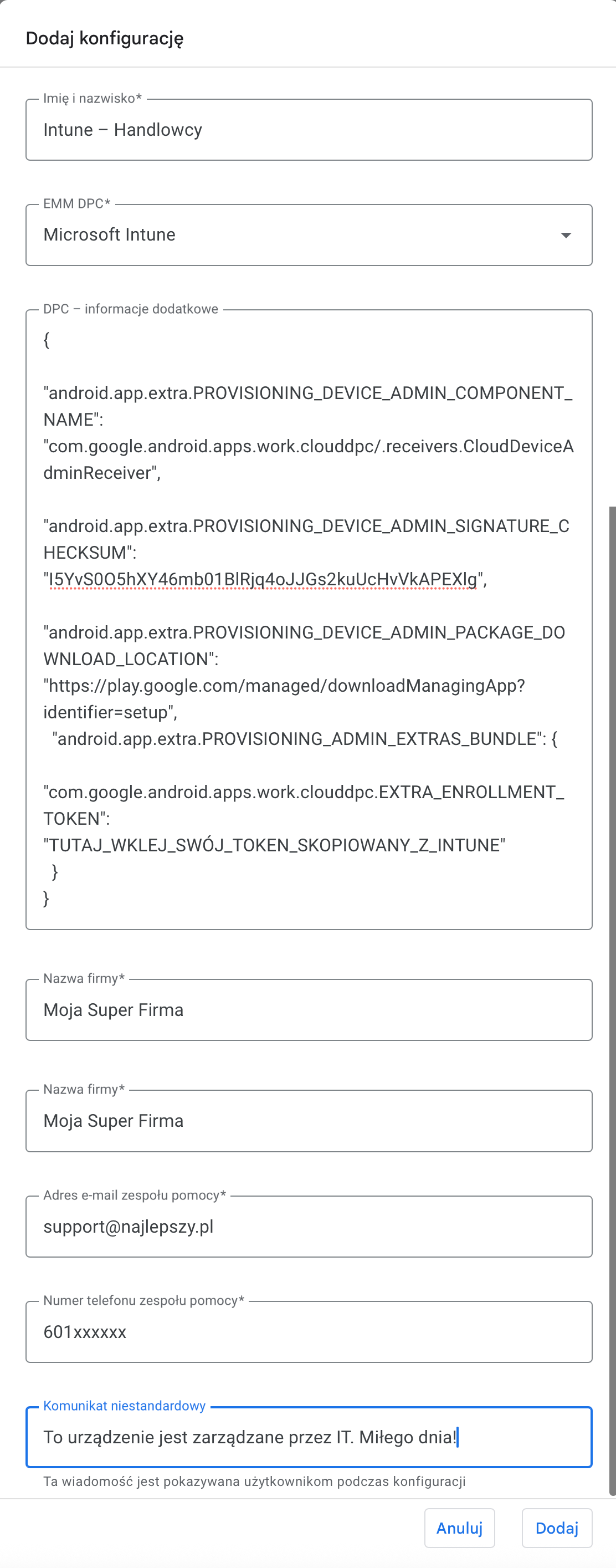
  1. Log in to https://partner.android.com/zerotouch
  2. Go to the Configurations tab and click the blue „+ Add configuration” button.
  3. Fill in the form:
    • Configuration name: e.g., „Intune – Sales”
    • EMM DPC: From the list select Microsoft Intune.
    • Company name: Your official name.
    • Support email/phone: Contact details for the user.
    • Custom message: e.g., „This device is managed by IT. Have a nice day!”.
    • DPC extras: Here we paste specially prepared code in JSON format. This is the heart of the entire operation!
Android Zero Touch configuration

Here’s the complete JSON template you should use:

{
  "android.app.extra.PROVISIONING_DEVICE_ADMIN_COMPONENT_NAME": "com.google.android.apps.work.clouddpc/.receivers.CloudDeviceAdminReceiver",
  "android.app.extra.PROVISIONING_DEVICE_ADMIN_SIGNATURE_CHECKSUM": "I5YvS0O5hXY46mb01BlRjq4oJJGs2kuUcHvVkAPEXlg",
  "android.app.extra.PROVISIONING_DEVICE_ADMIN_PACKAGE_DOWNLOAD_LOCATION": "https://play.google.com/managed/downloadManagingApp?identifier=setup",
  "android.app.extra.PROVISIONING_ADMIN_EXTRAS_BUNDLE": {
    "com.google.android.apps.work.clouddpc.EXTRA_ENROLLMENT_TOKEN": "PASTE_YOUR_TOKEN_COPIED_FROM_INTUNE_HERE"
  }
}

What do these mysterious lines mean? Let me explain:

  • PROVISIONING_DEVICE_ADMIN_COMPONENT_NAME: points to a specific application component (in this case the Google agent) that will manage the device
  • PROVISIONING_DEVICE_ADMIN_SIGNATURE_CHECKSUM: this is the checksum of the agent application certificate, guarantees that the phone downloads the correct and secure application, not some impersonating malware
  • PROVISIONING_DEVICE_ADMIN_PACKAGE_DOWNLOAD_LOCATION: the URL from which the agent should be downloaded
  • EXTRA_ENROLLMENT_TOKEN: this is exactly your unique token from Intune, which tells the agent: „report to THIS specific organization in THIS specific MDM service”

Pro-tip for advanced users: You can expand the PROVISIONING_ADMIN_EXTRAS_BUNDLE section with additional parameters to automate the process even more:

  • "android.app.extra.PROVISIONING_LOCALE": "pl_PL" – sets the default Polish language
  • "android.app.extra.PROVISIONING_TIME_ZONE": "Europe/Warsaw" – sets our time zone
  • "android.app.extra.PROVISIONING_LEAVE_ALL_SYSTEM_APPS_ENABLED": false – causes most manufacturer-preinstalled applications (so-called bloatware) to be hidden, leaving only the essential ones

After completing the JSON, save the configuration. Now in the Devices tab you can assign it as default or select specific devices and assign them this profile.

Part 3: Moment of truth and… what if something goes wrong?

When the user turns on a new phone and connects it to the internet, the process should start automatically. 
But what if it doesn’t?

Troubleshooting – or what to do when the magic doesn’t work

  • Problem #1: The device doesn’t launch Zero Touch mode at all
    • Check in the AZT portal: Is the IMEI or serial number of this device definitely on your device list? If not – contact the reseller.
    • Check assignment: Does the device have a configuration assigned or does it show „No configuration”? If you see the latter option – select and save the configuration.
    • Check Internet: The device must have a stable Internet connection (Wi-Fi or mobile data) to contact Google servers.
  • Problem #2: An „Invalid token” error or similar appears on the screen
    • Most common cause: Error when copying the token! I once spent an hour debugging because I copied the token from a PDF along with an invisible space character at the end ¯_(ツ)_/¯
    • Solution: Go to Intune, generate a NEW token (to be safe), copy it again (preferably to a clean Notepad to avoid formatting) and paste it into the configuration in the AZT portal. Reset the phone to factory settings and try again.
  • Problem #3: The device registers in Intune but doesn’t download applications or policies
    • Check licenses: Does the user logging in definitely have an Intune license assigned?
    • Check Azure AD groups: Are policies and applications in Intune assigned to user or device groups to which the given employee/phone belongs?
    • Patience: Sometimes synchronization between Azure AD, Intune and the device can take several minutes. Give it a moment before you start to panic.

Summary

Android Zero Touch integrated with Microsoft Intune is no longer a futuristic vision, but a powerful tool available here and now. The initial configuration, as you can see, requires focus and attention to detail, but it’s a one-time effort. The reward is huge time savings, iron-clad fleet standardization and peace of mind, because every device is secure from the first boot.

If you’re thinking about this seriously, start with a conversation with the operator. Ask, negotiate, use their knowledge. And then enjoy the sight of phones that configure themselves. It’s one of those feelings in an admin’s work that makes life worth living!

And once everything is working as it should, get interested in the topic of Conditional Access 😉

Until next time!

Puść ten artykuł w świat
XLinkedInMastodonFacebookWhatsAppFollow.itFollow.itMessengerUdostępnij
×
Follow.it
Otrzymuj nowe artykuły na swój e-mail
Podając swój adres e-mail wyrażasz zgodę na przetwarzanie Twoich danych przez serwis follow.it. Zapoznaj się z Regulaminem oraz Polityką Prywatności serwisu.
Tomek Sawko
Tomek Sawko
  • Android
  • Intune
  • Microsoft
  • Zero Touch
  • Share Article:

Komentarze

Anuluj

Powiązane wpisy

Guides

Conditional Access

Cześć! Dziś na warsztat bierzemy temat, który spędza sen z powiek wielu adminom, a jednocześnie jest jednym z najpotężniejszych narzędzi w arsenale Microsoftu do ochrony firmowych...

Opublikowane 4th luty 2026 przez Tomek Sawko
Guides

Rynek rozwiązań EMM / MDM w Polsce

Polski rynek rozwiązań do zarządzania mobilnością przedsiębiorstw (Enterprise Mobility Management - EMM) i zarządzania urządzeniami mobilnymi (Mobile Device Management - MDM)...

Opublikowane 4th luty 2026 przez Tomek Sawko
Dostępność Dostosowania

Napędzane przez OneTap

Jak długo chcesz ukryć pasek narzędzi dostępności?
Czas ukrycia paska narzędzi
Wybierz swój profil dostępności
Tryb niedowidzenia
Wzmacnia wizualne elementy strony
Profil bezpieczny dla napadów
Usuwa błyski i redukuje kolory
Tryb przyjazny dla ADHD
Skupione przeglądanie, bez rozproszeń
Tryb ślepoty
Zmniejsza rozproszenia, poprawia skupienie
Tryb bezpieczny dla epilepsji
Przyciemnia kolory i zatrzymuje miganie
Moduły treści
Rozmiar czcionki

Domyślny

Wysokość linii

Domyślny

Moduły kolorów
Moduły orientacji